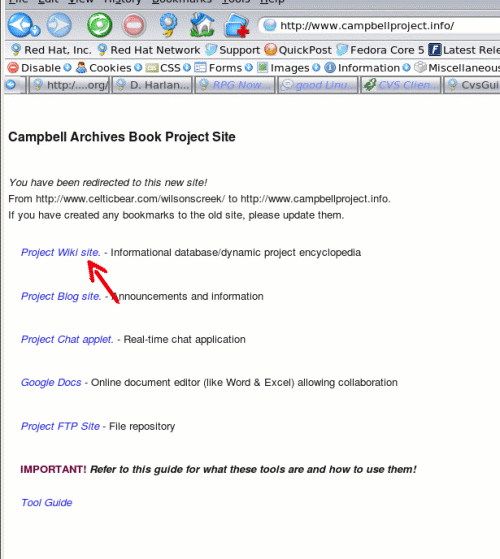
(http://www.campbellproject.info) this is what you will see.
Click on the "Project Wiki site. - Informational database/dynamic project encyclopedia" link.
|
When you first access the Campbell Project Website (http://www.campbellproject.info) this is what you will see. Click on the "Project Wiki site. - Informational database/dynamic project encyclopedia" link. |
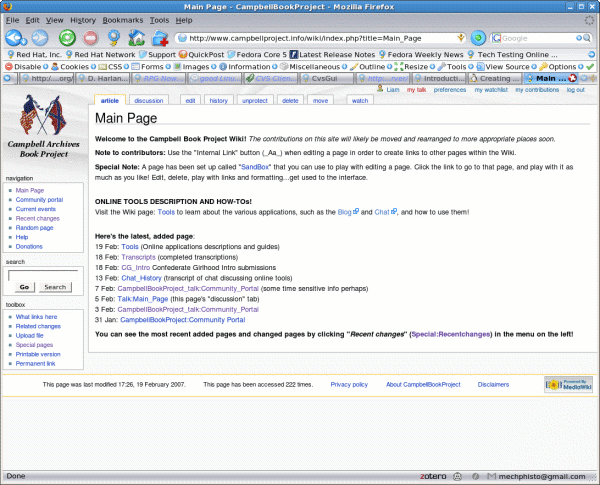 |
You are immediately taken to the Wiki Main Page. |
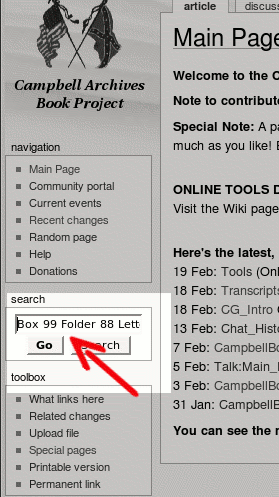 |
To create a new page for a transcription, enter the page title it will be called in the search field. In this example we're using: "Box 99 Folder 88 Letter". |
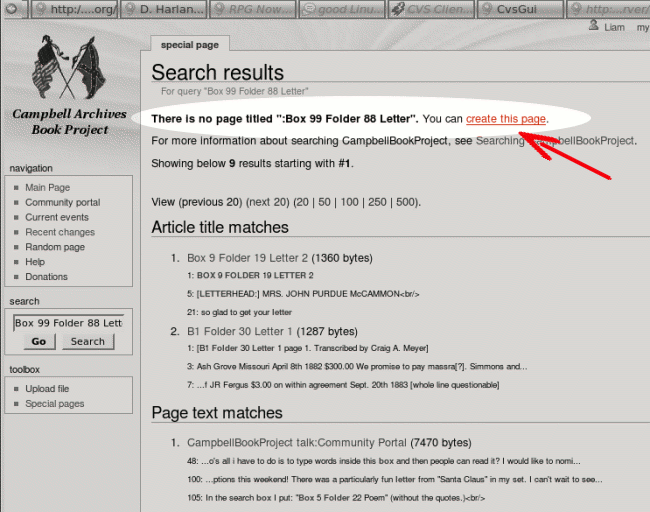 |
After clicking "Go" you should see a "Search Results" page if this page title has not yet been used. (If it HAS been used, you will be taken directly to the page in question.) To create the new page, simply click the link: "You can create this page." |
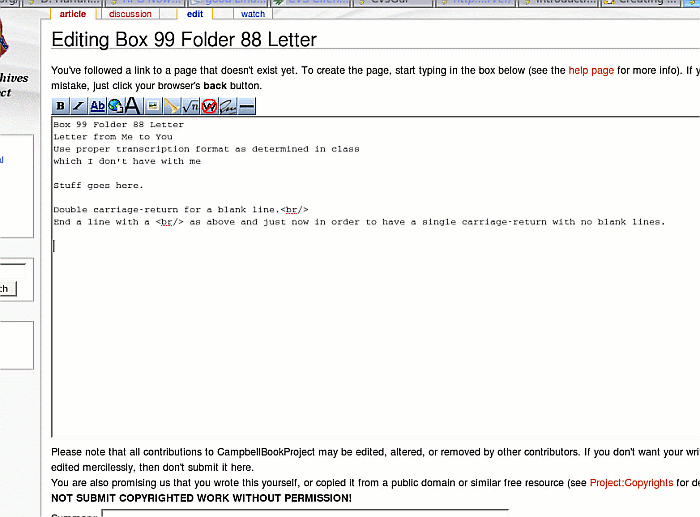 |
In the editor provided you can enter your data. Remember: If you copy-n-paste the text from another editor, it may change your formatting! You will need to manually italicize, bold, etc. Formatting Note: A single carriage return in the editor will not appear on the final page! To create carriage returns, insert the code: <br/> at the end of the line. To create a new line, simple double carriage return. |
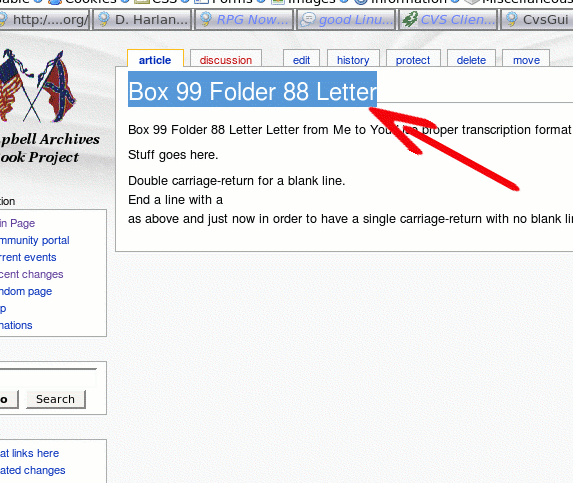 |
Once you have SAVED the edit, you will be shown the finished page. Block, or highlight, the page title and copy it exactly as-in. (i.e.: right-mouse-click: "copy", or Ctrl+C, etc.) |
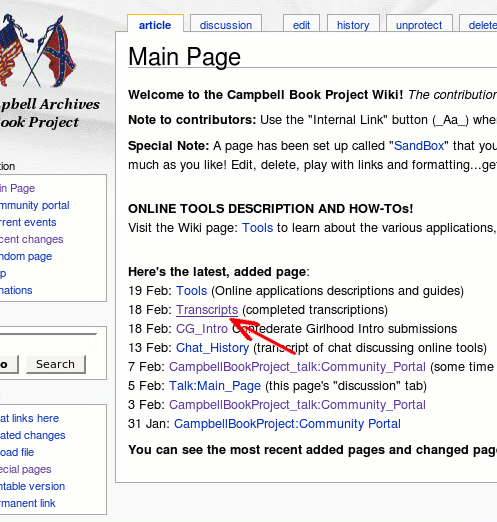 |
Return to the Main page via the left-hand main menu, then click the "Transcripts" link. |
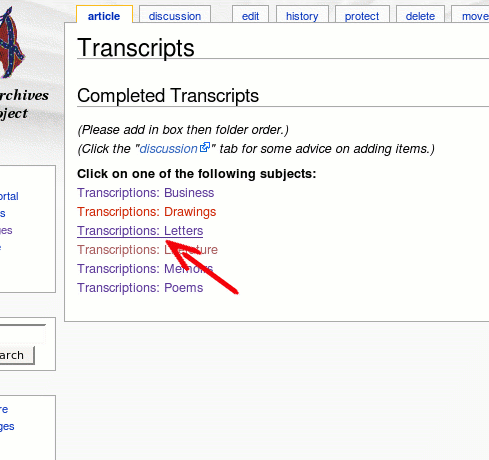 |
Click the appropriate sub-menu; in this example we're clicking "Transcriptions: Letters". |
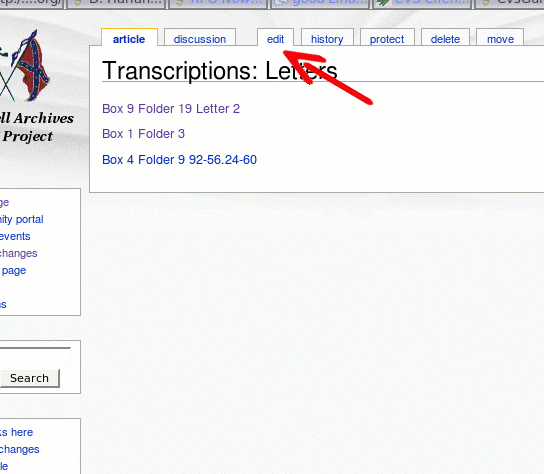 |
Click the "edit" tab at the top of the page displaying all entered items thus far. |
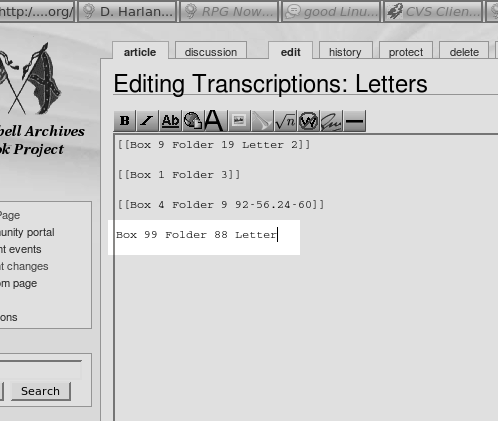 |
Now paste the page title into a new line in the editor. Note: Unlike the example image, try to keep the list in proper sequential order. |
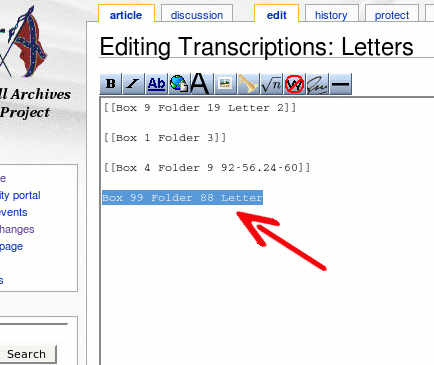 |
Now block, or highlight, the page title you just pasted. |
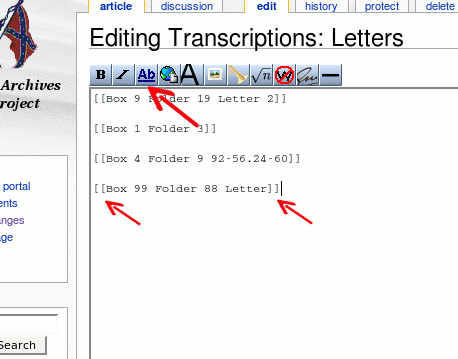 |
You can now click the Ab button ("Internal Link") which will automatically place double-brackets around the page title, or you can add them by hand. |
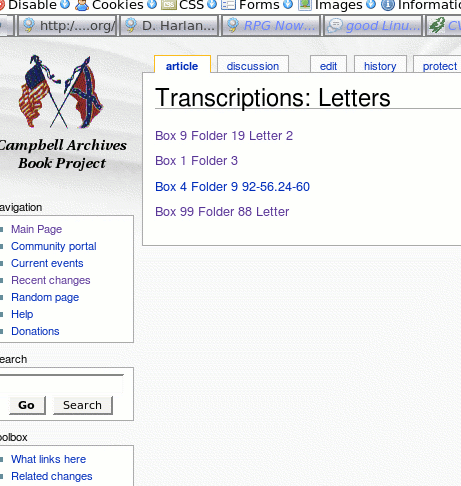 |
You now have an active link to the new page you created! |